upload/misc/worldtracker.org/How-To/For Dummies eBook Collection/Microsoft Office Word 2003 All-In-One Desk Reference for Dummies.pdf
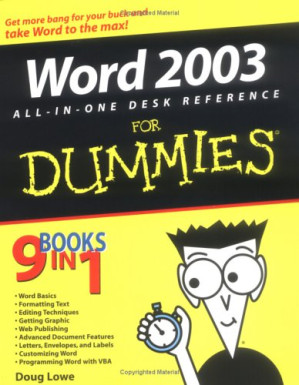
Word 2003 All-in-One Desk Reference for Dummies 🔍
by Doug Lowe
For Dummies, For dummies, desk, 2004
英语 [en] · PDF · 14.3MB · 2004 · 📘 非小说类图书 · 🚀/duxiu/lgli/lgrs/nexusstc/upload/zlib · Save
描述
Table of Contents 8
Introduction 25
About This Book 25
How to Use This Book 26
How This Book Is Organized 27
Icons Used in This Book 28
Where to Go from Here 29
Book I: Word Basics 31
Contents at a Glance 32
Chapter 1: Getting to Know Word 33
Starting Word 33
What Is All This Stuff? 35
The View from Here Is Great 37
Typing and Editing Text 38
Printing Your Masterpiece 39
Saving Your Work 40
Opening a Document 41
Closing a Document 42
Exiting Word 43
Chapter 2: Managing Your Documents 45
Creating a New Document 45
Using the File -> Open Command 46
Opening Recently Used Documents 51
Finding Lost Files 52
Using the Save As Command 57
Save Options 59
Password Protecting Your Files 61
Chapter 3: Working with Templates 63
What Is a Template? 63
The Normal. dot Template 64
Creating a New Document Based on a Template 65
Creating a Document from an Online Template 66
Changing the Template Attached to a Document 67
Creating Your Own Templates 69
Using Global Templates 71
How Word Resolves Duplicate Template Elements 73
Using the Organizer 74
A Gallery of Word's Templates 75
Using Wizards 106
Chapter 4: Printing Your Documents 113
Printing the Quick Way 113
Using the Print Dialog Box 113
Using the Print Preview Command 118
Chapter 5: Help! 119
Meeting the Assistant 119
Summoning the Assistant 120
Asking a Question 121
Changing Assistants 123
Help the Old-Fashioned Way 124
Searching for Lost Help Topics 125
Getting Help on the Internet 125
Repairing a Broken Office 126
Book II: Formatting Text 127
Contents at a Glance 128
Chapter 1: Basic Text Formatting 129
Understanding Formatting in Word 130
Formatting Characters 131
Inserting Special Characters 139
Using the Format Painter 140
Formatting Paragraphs 141
All about Tabs 146
AutoFormat (Or, Make It Stop!) 151
The Ten Commandments of Formatting 152
Chapter 2: The Border Patrol and Other Shady Characters 155
Creating Borders in Your Text 155
Shading Your Text 159
Bordering an Entire Page 161
Adding a Horizontal Line 162
Chapter 3: Working with Styles 165
Understanding Styles 165
Using the Style Drop-Down List 167
Overriding Style Formatting 170
Using the Styles and Formatting Task Pane 170
Neat Things to Do with Styles 174
Better Living through Styles 183
Chapter 4: Page Setup and Section Formatting 187
Understanding Sections 187
Creating Section Breaks 189
Using the File -> Page Setup Command 190
Inserting Page Numbers 196
Headers and Footers 198
Creating Sections with Different Page Numbers 201
Chapter 5: Column Formatting 203
Creating Columns 203
Adjusting the Column Width 206
Forcing a Column Break 206
Using Linked Text Boxes to Create Columns 207
Hyphenating Your Text 207
Chapter 6: Using Tables 211
Understanding Tables 211
Creating Tables 213
Editing Tables 219
Formatting Tables 224
Sorting a Table 228
Using Table Formulas 229
Converting Text to a Table (And Vice-Versa) 231
Chapter 7: Creating Lists 233
Creating a Bulleted or Numbered List the Easy Way 233
Automatic Bullets and Numbers 236
Using Deviant Bullets 236
Breaking and Continuing a Numbered List 239
Using Crazy Numbering Schemes 240
Creating an Outline List 242
Numbering Your Headings 244
Using Fields to Create Sequence Numbers 245
Chapter 8: Working with Footnotes and Endnotes 247
Adding a Footnote 247
Changing the Footnote Format 249
Changing the Reference Marks 250
Changing the Footnote Separators 251
Finding a Footnote Reference 252
Book III: Editing Techniques 253
Contents at a Glance 254
Chapter 1: Getting Around 255
Basic Movement 255
Using the Scroll Bar 256
Rolling Around with the Mouse Wheel 257
Going Places with Edit 258
Go To 258
Just Browsing 259
Yes, You Can Go Back 260
Working with Bookmarks 261
Using the Document Map 262
Using Thumbnails 264
Chapter 2: Basic Document Editing Techniques 265
Avoiding the Evil Overtype Mode 265
Selecting Text with the Mouse and Keyboard 266
Deleting Text 268
Copy, Cut, and Paste 269
Using the Clipboard Task Pane 270
Dragging and Dropping 271
The Magic of Undo and Repeat 272
Word and Character Counts 273
Changing Case 274
Chapter 3: Finding and Replacing 277
Using the Find Command 277
Advanced Searches 279
Replacing Text 283
Chapter 4: All About AutoCorrect and Its Siblings 287
Using AutoCorrect 287
Using AutoFormat 294
Using AutoFormat As You Type 296
Using AutoText 300
Using Smart Tags 303
Chapter 5: Proofing and Research Tools 305
Using the Spell Checker 305
Checking Spelling as You Go 306
Using the Spelling Icon 308
Spell Checking After the Fact 309
Using the Grammar Checker, or Not 314
Using the Thesaurus 320
Using the Dictionary 321
Losing Something in the Translation 322
Chapter 6: Track Changes and Other Collaboration Features 325
Using Reading Layout 325
All Hail the Honorable Reviewing Toolbar 327
Using the Highlighter 328
Keeping Your Comments to Yourself (Not!) 329
Tracking Changes 332
Sending a Document to Reviewers 336
Using SharePoint Team Services 337
Book IV: Getting Graphic 341
Contents at a Glance 342
Chapter 1: Inserting Pictures and Clip Art 343
Exploring the Many Types of Pictures 343
Where to Get Pictures 345
Inserting Pictures into Your Documents 346
Playing with Your Pictures 352
Chapter 2: Drawing on Your Documents 359
Some General Drawing Tips 359
Working with the Drawing Toolbar 361
Canvassing the Situation 363
Drawing Simple Objects 364
Using AutoShapes 366
Drawing a Polygon or Freeform Shape 369
Drawing a Curved Line or Shape 371
Setting the Fill, Line, and Font Color 372
Setting the Line Style 375
Flipping and Rotating Objects 376
Drawing a Complicated Picture 378
Chapter 3: Fill Effects, Ghosts, Shadows, and Other Effects 385
Working with Fill Effects 385
Creating Transparent Fills 389
Applying a Shadow 390
Adding 3-D Effects 391
Chapter 4: Working Graphically with Text 395
Using Text Boxes 395
I've Been Framed! 400
Adding Captions to Your Pictures 403
Creating Fancy Text with WordArt 406
Drawing a Callout 409
Chapter 5: Charts and Diagrams 411
Creating a Chart 411
Creating and Inserting a Diagram 420
Working with Organization Charts 423
Working with Other Diagrams 426
Chapter 6: A Pocket Full of Desktop Publishing Tricks 429
Sidebars 429
Pull Quotes 431
Eyebrows 433
Icons 434
Side Headings 436
Chapter 7: Move Over, Einstein (Creating Equations) 439
Introducing Equation Editor 440
Creating an Equation 440
Editing an Equation 444
Adding Text to an Equation 445
Keyboard Shortcuts for Equation Editor 446
Book V: Web Publishing 449
Contents at a Glance 450
Chapter 1: Going Online with Word 451
Saving a Document on a Web Server 451
Creating a Network Place 452
Opening a Document from a Web Server 454
Opening a Document in Internet Explorer 456
Using an FTP Site 457
Using the Web Toolbar 460
Chapter 2: Creating Web Pages with Word 463
Understanding Web Page Basics 463
Setting Up a Web Site 465
Setting Word's Web Options 467
Creating Web Page Documents 468
Editing and Formatting Web Pages 470
Previewing Web Pages 471
Chapter 3: Basic Web Formatting Features 473
Creating Hyperlinks 473
Working with Images 478
Inserting Multimedia with the Web Tools Toolbar 483
Editing HTML 485
Chapter 4: Using Themes and Cascading Style Sheets 487
Using Themes 487
Using External Cascading Style Sheets 490
Chapter 5: Working with Frames 493
Understanding Frames 493
Creating a Frames Page 495
Formatting Your Frames 497
Editing Pages in Frames 499
Working with Hyperlinks and Frames 500
Inserting a Table of Contents in a Frame 500
Previewing a Frames Page 502
Chapter 6: Word and XML 503
What Exactly Is XML, Anyway? 503
Working with XML Documents in Word 506
Book VI: Advanced Document Features 511
Contents at a Glance 512
Chapter 1: Working with Fields 513
Understanding Fields 513
Inserting a Field 515
Keyboard Shortcuts for Working with Fields 517
Another Way to Insert Fields 518
Formatting Field Results with Switches 518
Updating a Field 521
Preventing a Field from Being Updated 522
Field Code Reference 523
Chapter 2: Form Follows Function (Setting Up and Using Forms) 529
Understanding Forms 530
Creating a Form Template 531
Using the Forms Toolbar 534
Creating a Text Field 535
Creating a Check Box Field 537
Creating a Drop-Down Field 538
Filling Out a Form 540
Adding Help to a Form Field 541
Using Pre-Printed Forms 542
Exporting Form Data to a Text File 542
Chapter 3: More about Outlining 545
Switching to Outline View 545
Understanding Outline View 547
Showing or Hiding Formatting 549
Collapsing and Expanding the Outline 549
Collapsing and Expanding a Specific Heading 551
Selecting Paragraphs in Outline View 551
Promoting and Demoting Paragraphs 552
Editing in Outline View 554
Printing an Outline 555
Sorting a Document Alphabetically by Headings 556
Using the Document Map 557
Chapter 4: Mystical Master Documents 559
What Is a Master Document? 559
Whipping Up a Master Document 563
Putting an Existing File into a Master Document 566
Break It Up! 567
Numbering Subdocument Pages Consecutively 568
Chapter 5: So You Want to Make an Index, Eh? 571
Mark Those Index Entries 572
Creating an Index 574
Updating an Index 575
Marking a Range of Pages 576
Creating Subentries 577
See Also . . . 578
Isn't There an Easier Way? 578
Chapter 6: Creating a Table of Contents or Table of Figures 581
Understanding Tables of Contents 582
Creating a Table of Contents 583
Beyond Heading Styles 585
Creating a Table of Figures or Other Similar Tables 587
Updating Tables of Contents or Figures 590
Chapter 7: Objection, Your Honor (Creating a Table of Authorities) 591
Marking Citations 592
Creating a Table of Authorities 594
Updating a Table of Authorities 596
Disclaimer of Warranties and Limit of Liability 596
Book VII: Letters, Envelopes, and Labels 597
Contents at a Glance 598
Chapter 1: Creating Letters and Envelopes 599
Using the Letter Wizard 599
Printing an Envelope 604
Printing Labels 606
Creating Custom Labels 608
Chapter 2: Faxing and E-Mailing Documents 611
Sending a Fax 611
Sending a Document as an E-Mail Message 614
Chapter 3: Using the Mail Merge Wizard 617
Understanding Mail Merge 617
Using the Mail Merge Wizard 618
Using the Mail Merge Toolbar 628
Chapter 4: More Mail Merge Tricks 631
Other Types of Merges 631
Fun Things to Do with the Data Source 637
Book VIII: Customizing Word 643
Contents at a Glance 644
Chapter 1: Opting for Options 645
What's with All the Options? 646
Vivid View Options 648
Gregarious General Options 652
Extraordinary Edit Options 655
Precocious Print Options 658
Savvy Save Options 659
Unbelievable User Information Options 660
Counterproductive Compatibility Options 660
Fidgety File Locations Options 662
Secret Security Options 663
Serious Spelling Options 665
Tenacious Track Changes Options 666
Chapter 2: Customizing Toolbars, Menus, and Keyboard Shortcuts 667
Belly Up to the Button Bar 667
Messing with Menus 677
Creating Custom Keyboard Shortcuts 681
Chapter 3: Using Voice and Handwriting Features 685
Welcoming the Language Toolbar 685
Using Speech Recognition 686
Handwriting Recognition 689
Book IX: Programming Word with VBA 693
Contents at a Glance 694
Chapter 1: Recording and Using Macros 695
Where Do All the Macros Go? 695
Doing the Macro Recorder Dance 696
Macro Recording Tips 699
Running a Macro 701
Editing a Macro 701
Simple Macro Edits That Don't Require a Ph. D. in VBA 703
Using Auto Macros 704
Chapter 2: Programming with VBA 707
The Basic Structure of VBA Macros 707
Basic Elements of VBA 708
Working with Variables and Data 710
Using Strings 713
Of Objects, Properties, and Methods 715
Controlling Your Programs 720
For/Next Loops 724
User Input and Output 727
User-Defined Procedures and Functions 730
Chapter 3: Working with Word's Object Model 733
An Overview of Important Word Objects 733
Using the Application Object 736
Working with Documents 738
Understanding Selection and Range Objects 741
Moving Selections and Ranges 745
Working with Text 748
Formatting Text 752
Chapter 4: Creating UserForms 755
Understanding UserForms 755
Creating a UserForm 757
Working with Controls 760
Using Command Buttons 761
Using Labels 763
Using Text Boxes 763
Using Frames 764
Using Check Boxes and Option Buttons 765
Using Combo Boxes 767
Using List Boxes 768
Index 771
Introduction 25
About This Book 25
How to Use This Book 26
How This Book Is Organized 27
Icons Used in This Book 28
Where to Go from Here 29
Book I: Word Basics 31
Contents at a Glance 32
Chapter 1: Getting to Know Word 33
Starting Word 33
What Is All This Stuff? 35
The View from Here Is Great 37
Typing and Editing Text 38
Printing Your Masterpiece 39
Saving Your Work 40
Opening a Document 41
Closing a Document 42
Exiting Word 43
Chapter 2: Managing Your Documents 45
Creating a New Document 45
Using the File -> Open Command 46
Opening Recently Used Documents 51
Finding Lost Files 52
Using the Save As Command 57
Save Options 59
Password Protecting Your Files 61
Chapter 3: Working with Templates 63
What Is a Template? 63
The Normal. dot Template 64
Creating a New Document Based on a Template 65
Creating a Document from an Online Template 66
Changing the Template Attached to a Document 67
Creating Your Own Templates 69
Using Global Templates 71
How Word Resolves Duplicate Template Elements 73
Using the Organizer 74
A Gallery of Word's Templates 75
Using Wizards 106
Chapter 4: Printing Your Documents 113
Printing the Quick Way 113
Using the Print Dialog Box 113
Using the Print Preview Command 118
Chapter 5: Help! 119
Meeting the Assistant 119
Summoning the Assistant 120
Asking a Question 121
Changing Assistants 123
Help the Old-Fashioned Way 124
Searching for Lost Help Topics 125
Getting Help on the Internet 125
Repairing a Broken Office 126
Book II: Formatting Text 127
Contents at a Glance 128
Chapter 1: Basic Text Formatting 129
Understanding Formatting in Word 130
Formatting Characters 131
Inserting Special Characters 139
Using the Format Painter 140
Formatting Paragraphs 141
All about Tabs 146
AutoFormat (Or, Make It Stop!) 151
The Ten Commandments of Formatting 152
Chapter 2: The Border Patrol and Other Shady Characters 155
Creating Borders in Your Text 155
Shading Your Text 159
Bordering an Entire Page 161
Adding a Horizontal Line 162
Chapter 3: Working with Styles 165
Understanding Styles 165
Using the Style Drop-Down List 167
Overriding Style Formatting 170
Using the Styles and Formatting Task Pane 170
Neat Things to Do with Styles 174
Better Living through Styles 183
Chapter 4: Page Setup and Section Formatting 187
Understanding Sections 187
Creating Section Breaks 189
Using the File -> Page Setup Command 190
Inserting Page Numbers 196
Headers and Footers 198
Creating Sections with Different Page Numbers 201
Chapter 5: Column Formatting 203
Creating Columns 203
Adjusting the Column Width 206
Forcing a Column Break 206
Using Linked Text Boxes to Create Columns 207
Hyphenating Your Text 207
Chapter 6: Using Tables 211
Understanding Tables 211
Creating Tables 213
Editing Tables 219
Formatting Tables 224
Sorting a Table 228
Using Table Formulas 229
Converting Text to a Table (And Vice-Versa) 231
Chapter 7: Creating Lists 233
Creating a Bulleted or Numbered List the Easy Way 233
Automatic Bullets and Numbers 236
Using Deviant Bullets 236
Breaking and Continuing a Numbered List 239
Using Crazy Numbering Schemes 240
Creating an Outline List 242
Numbering Your Headings 244
Using Fields to Create Sequence Numbers 245
Chapter 8: Working with Footnotes and Endnotes 247
Adding a Footnote 247
Changing the Footnote Format 249
Changing the Reference Marks 250
Changing the Footnote Separators 251
Finding a Footnote Reference 252
Book III: Editing Techniques 253
Contents at a Glance 254
Chapter 1: Getting Around 255
Basic Movement 255
Using the Scroll Bar 256
Rolling Around with the Mouse Wheel 257
Going Places with Edit 258
Go To 258
Just Browsing 259
Yes, You Can Go Back 260
Working with Bookmarks 261
Using the Document Map 262
Using Thumbnails 264
Chapter 2: Basic Document Editing Techniques 265
Avoiding the Evil Overtype Mode 265
Selecting Text with the Mouse and Keyboard 266
Deleting Text 268
Copy, Cut, and Paste 269
Using the Clipboard Task Pane 270
Dragging and Dropping 271
The Magic of Undo and Repeat 272
Word and Character Counts 273
Changing Case 274
Chapter 3: Finding and Replacing 277
Using the Find Command 277
Advanced Searches 279
Replacing Text 283
Chapter 4: All About AutoCorrect and Its Siblings 287
Using AutoCorrect 287
Using AutoFormat 294
Using AutoFormat As You Type 296
Using AutoText 300
Using Smart Tags 303
Chapter 5: Proofing and Research Tools 305
Using the Spell Checker 305
Checking Spelling as You Go 306
Using the Spelling Icon 308
Spell Checking After the Fact 309
Using the Grammar Checker, or Not 314
Using the Thesaurus 320
Using the Dictionary 321
Losing Something in the Translation 322
Chapter 6: Track Changes and Other Collaboration Features 325
Using Reading Layout 325
All Hail the Honorable Reviewing Toolbar 327
Using the Highlighter 328
Keeping Your Comments to Yourself (Not!) 329
Tracking Changes 332
Sending a Document to Reviewers 336
Using SharePoint Team Services 337
Book IV: Getting Graphic 341
Contents at a Glance 342
Chapter 1: Inserting Pictures and Clip Art 343
Exploring the Many Types of Pictures 343
Where to Get Pictures 345
Inserting Pictures into Your Documents 346
Playing with Your Pictures 352
Chapter 2: Drawing on Your Documents 359
Some General Drawing Tips 359
Working with the Drawing Toolbar 361
Canvassing the Situation 363
Drawing Simple Objects 364
Using AutoShapes 366
Drawing a Polygon or Freeform Shape 369
Drawing a Curved Line or Shape 371
Setting the Fill, Line, and Font Color 372
Setting the Line Style 375
Flipping and Rotating Objects 376
Drawing a Complicated Picture 378
Chapter 3: Fill Effects, Ghosts, Shadows, and Other Effects 385
Working with Fill Effects 385
Creating Transparent Fills 389
Applying a Shadow 390
Adding 3-D Effects 391
Chapter 4: Working Graphically with Text 395
Using Text Boxes 395
I've Been Framed! 400
Adding Captions to Your Pictures 403
Creating Fancy Text with WordArt 406
Drawing a Callout 409
Chapter 5: Charts and Diagrams 411
Creating a Chart 411
Creating and Inserting a Diagram 420
Working with Organization Charts 423
Working with Other Diagrams 426
Chapter 6: A Pocket Full of Desktop Publishing Tricks 429
Sidebars 429
Pull Quotes 431
Eyebrows 433
Icons 434
Side Headings 436
Chapter 7: Move Over, Einstein (Creating Equations) 439
Introducing Equation Editor 440
Creating an Equation 440
Editing an Equation 444
Adding Text to an Equation 445
Keyboard Shortcuts for Equation Editor 446
Book V: Web Publishing 449
Contents at a Glance 450
Chapter 1: Going Online with Word 451
Saving a Document on a Web Server 451
Creating a Network Place 452
Opening a Document from a Web Server 454
Opening a Document in Internet Explorer 456
Using an FTP Site 457
Using the Web Toolbar 460
Chapter 2: Creating Web Pages with Word 463
Understanding Web Page Basics 463
Setting Up a Web Site 465
Setting Word's Web Options 467
Creating Web Page Documents 468
Editing and Formatting Web Pages 470
Previewing Web Pages 471
Chapter 3: Basic Web Formatting Features 473
Creating Hyperlinks 473
Working with Images 478
Inserting Multimedia with the Web Tools Toolbar 483
Editing HTML 485
Chapter 4: Using Themes and Cascading Style Sheets 487
Using Themes 487
Using External Cascading Style Sheets 490
Chapter 5: Working with Frames 493
Understanding Frames 493
Creating a Frames Page 495
Formatting Your Frames 497
Editing Pages in Frames 499
Working with Hyperlinks and Frames 500
Inserting a Table of Contents in a Frame 500
Previewing a Frames Page 502
Chapter 6: Word and XML 503
What Exactly Is XML, Anyway? 503
Working with XML Documents in Word 506
Book VI: Advanced Document Features 511
Contents at a Glance 512
Chapter 1: Working with Fields 513
Understanding Fields 513
Inserting a Field 515
Keyboard Shortcuts for Working with Fields 517
Another Way to Insert Fields 518
Formatting Field Results with Switches 518
Updating a Field 521
Preventing a Field from Being Updated 522
Field Code Reference 523
Chapter 2: Form Follows Function (Setting Up and Using Forms) 529
Understanding Forms 530
Creating a Form Template 531
Using the Forms Toolbar 534
Creating a Text Field 535
Creating a Check Box Field 537
Creating a Drop-Down Field 538
Filling Out a Form 540
Adding Help to a Form Field 541
Using Pre-Printed Forms 542
Exporting Form Data to a Text File 542
Chapter 3: More about Outlining 545
Switching to Outline View 545
Understanding Outline View 547
Showing or Hiding Formatting 549
Collapsing and Expanding the Outline 549
Collapsing and Expanding a Specific Heading 551
Selecting Paragraphs in Outline View 551
Promoting and Demoting Paragraphs 552
Editing in Outline View 554
Printing an Outline 555
Sorting a Document Alphabetically by Headings 556
Using the Document Map 557
Chapter 4: Mystical Master Documents 559
What Is a Master Document? 559
Whipping Up a Master Document 563
Putting an Existing File into a Master Document 566
Break It Up! 567
Numbering Subdocument Pages Consecutively 568
Chapter 5: So You Want to Make an Index, Eh? 571
Mark Those Index Entries 572
Creating an Index 574
Updating an Index 575
Marking a Range of Pages 576
Creating Subentries 577
See Also . . . 578
Isn't There an Easier Way? 578
Chapter 6: Creating a Table of Contents or Table of Figures 581
Understanding Tables of Contents 582
Creating a Table of Contents 583
Beyond Heading Styles 585
Creating a Table of Figures or Other Similar Tables 587
Updating Tables of Contents or Figures 590
Chapter 7: Objection, Your Honor (Creating a Table of Authorities) 591
Marking Citations 592
Creating a Table of Authorities 594
Updating a Table of Authorities 596
Disclaimer of Warranties and Limit of Liability 596
Book VII: Letters, Envelopes, and Labels 597
Contents at a Glance 598
Chapter 1: Creating Letters and Envelopes 599
Using the Letter Wizard 599
Printing an Envelope 604
Printing Labels 606
Creating Custom Labels 608
Chapter 2: Faxing and E-Mailing Documents 611
Sending a Fax 611
Sending a Document as an E-Mail Message 614
Chapter 3: Using the Mail Merge Wizard 617
Understanding Mail Merge 617
Using the Mail Merge Wizard 618
Using the Mail Merge Toolbar 628
Chapter 4: More Mail Merge Tricks 631
Other Types of Merges 631
Fun Things to Do with the Data Source 637
Book VIII: Customizing Word 643
Contents at a Glance 644
Chapter 1: Opting for Options 645
What's with All the Options? 646
Vivid View Options 648
Gregarious General Options 652
Extraordinary Edit Options 655
Precocious Print Options 658
Savvy Save Options 659
Unbelievable User Information Options 660
Counterproductive Compatibility Options 660
Fidgety File Locations Options 662
Secret Security Options 663
Serious Spelling Options 665
Tenacious Track Changes Options 666
Chapter 2: Customizing Toolbars, Menus, and Keyboard Shortcuts 667
Belly Up to the Button Bar 667
Messing with Menus 677
Creating Custom Keyboard Shortcuts 681
Chapter 3: Using Voice and Handwriting Features 685
Welcoming the Language Toolbar 685
Using Speech Recognition 686
Handwriting Recognition 689
Book IX: Programming Word with VBA 693
Contents at a Glance 694
Chapter 1: Recording and Using Macros 695
Where Do All the Macros Go? 695
Doing the Macro Recorder Dance 696
Macro Recording Tips 699
Running a Macro 701
Editing a Macro 701
Simple Macro Edits That Don't Require a Ph. D. in VBA 703
Using Auto Macros 704
Chapter 2: Programming with VBA 707
The Basic Structure of VBA Macros 707
Basic Elements of VBA 708
Working with Variables and Data 710
Using Strings 713
Of Objects, Properties, and Methods 715
Controlling Your Programs 720
For/Next Loops 724
User Input and Output 727
User-Defined Procedures and Functions 730
Chapter 3: Working with Word's Object Model 733
An Overview of Important Word Objects 733
Using the Application Object 736
Working with Documents 738
Understanding Selection and Range Objects 741
Moving Selections and Ranges 745
Working with Text 748
Formatting Text 752
Chapter 4: Creating UserForms 755
Understanding UserForms 755
Creating a UserForm 757
Working with Controls 760
Using Command Buttons 761
Using Labels 763
Using Text Boxes 763
Using Frames 764
Using Check Boxes and Option Buttons 765
Using Combo Boxes 767
Using List Boxes 768
Index 771
备用文件名
upload/wll/ENTER/1 ebook Collections/For Dummies Collection/Microsoft Office Word 2003 All-In-One Desk Reference for Dummies.pdf
备用文件名
nexusstc/Word 2003 All-in-One Desk Reference for Dummies/6fc8188e046656f6521f4c5fd28a2af4.pdf
备用文件名
zlib/Computers/Applications & Software/Doug Lowe/Word 2003 All-in-One Desk Reference for Dummies_705576.pdf
备选作者
Lowe, Doug
备用出版商
John Wiley & Sons, Incorporated
备用出版商
Hungry Minds, Incorporated
备用出版商
Hungry Minds ; John Wiley
备用出版商
Wiley Pub.
备用版本
John Wiley & Sons, Inc. (trade), Hoboken, NJ, 2004
备用版本
--For dummies, Hoboken, NJ, New Jersey, 2004
备用版本
United States, United States of America
备用版本
New York, Chichester, 2004
备用版本
1, FR, 2004
元数据中的注释
For Dummies -- 0
元数据中的注释
lg277332
元数据中的注释
{"edition":"desk","isbns":["0764571419","9780764571411"],"last_page":813,"publisher":"For Dummies","series":"For dummies"}
元数据中的注释
Includes index.
元数据中的注释
topic: Microsoft Word; Word processing
元数据中的注释
Type: 英文图书
元数据中的注释
Bookmarks:
1. (p1) Introduction
2. (p2) Book I: Word Basics
2.1. (p3) Chapter 1: Getting to Know Word
2.2. (p4) Chapter 2: Managing Your Documents
2.3. (p5) Chapter 3: Working with Templates
2.4. (p6) Chapter 4: Printing Your Documents
2.5. (p7) Chapter 5: Help!
3. (p8) Book II: Formatting Text
3.1. (p9) Chapter 1: Basic Text Formatting
3.2. (p10) Chapter 2: The Border Patrol and Other Shady Characters
3.3. (p11) Chapter 3: Working with Styles
3.4. (p12) Chapter 4: Page Setup and Section Formatting
3.5. (p13) Chapter 5: Column Formatting
3.6. (p14) Chapter 6: Using Tables
3.7. (p15) Chapter 7: Creating Lists
3.8. (p16) Chapter 8: Working with Footnotes and Endnotes
4. (p17) Book III: Editing Techniques
4.1. (p18) Chapter 1: Getting Around
4.2. (p19) Chapter 2: Basic Document Editing Techniques
4.3. (p20) Chapter 3: Finding and Replacing
4.4. (p21) Chapter 4: All About AutoCorrect and Its Siblings
4.5. (p22) Chapter 5: Proofing and Research Tools
4.6. (p23) Chapter 6: Track Changes and Other Collaboration Features
5. (p24) Book IV: Getting Graphic
5.1. (p25) Chapter 1: Inserting Pictures and Clip Art
5.2. (p26) Chapter 2: Drawing on Your Documents
5.3. (p27) Chapter 3: Fill Effects, Ghosts, Shadows, and Other Effects
5.4. (p28) Chapter 4: Working Graphically with Text
5.5. (p29) Chapter 5: Charts and Diagrams
5.6. (p30) Chapter 6: A Pocket Full of Desktop Publishing Tricks
5.7. (p31) Chapter 7: Move Over, Einstein (Creating Equations)
6. (p32) Book V: Web Publishing
6.1. (p33) Chapter 1: Going Online with Word
6.2. (p34) Chapter 2: Creating Web Pages with Word
6.3. (p35) Chapter 3: Basic Web Formatting Features
6.4. (p36) Chapter 4: Using Themes and Cascading Style Sheets
6.5. (p37) Chapter 5: Working with Frames
6.6. (p38) Chapter 6: Word and XML
7. (p39) Book VI: Advanced Document Features
7.1. (p40) Chapter 1: Working with Fields
7.2. (p41) Chapter 2: Form Follows Function (Setting Up and Using Forms)
7.3. (p42) Chapter 3: More about Outlining
7.4. (p43) Chapter 4: Mystical Master Documents
7.5. (p44) Chapter 5: So You Want to Make an Index, Eh?
7.6. (p45) Chapter 6: Creating a Table of Contents or Table of Figures
7.7. (p46) Chapter 7: Objection, Your Honor (Creating a Table of Authorities)
8. (p47) Book VII: Letters, Envelopes, and Labels
8.1. (p48) Chapter 1: Creating Letters and Envelopes
8.2. (p49) Chapter 2: Faxing and E-Mailing Documents
8.3. (p50) Chapter 3: Using the Mail Merge Wizard
8.4. (p51) Chapter 4: More Mail Merge Tricks
9. (p52) Book VIII: Customizing Word
9.1. (p53) Chapter 1: Opting for Options
9.2. (p54) Chapter 2: Customizing Toolbars, Menus, and Keyboard Shortcuts
9.3. (p55) Chapter 3: Using Voice and Handwriting Features
10. (p56) Book IX: Programming Word with VBA
10.1. (p57) Chapter 1: Recording and Using Macros
10.2. (p58) Chapter 2: Programming with VBA
10.3. (p59) Chapter 3: Working with Word's Object Model
10.4. (p60) Chapter 4: Creating UserForms
11. (p61) Index
1. (p1) Introduction
2. (p2) Book I: Word Basics
2.1. (p3) Chapter 1: Getting to Know Word
2.2. (p4) Chapter 2: Managing Your Documents
2.3. (p5) Chapter 3: Working with Templates
2.4. (p6) Chapter 4: Printing Your Documents
2.5. (p7) Chapter 5: Help!
3. (p8) Book II: Formatting Text
3.1. (p9) Chapter 1: Basic Text Formatting
3.2. (p10) Chapter 2: The Border Patrol and Other Shady Characters
3.3. (p11) Chapter 3: Working with Styles
3.4. (p12) Chapter 4: Page Setup and Section Formatting
3.5. (p13) Chapter 5: Column Formatting
3.6. (p14) Chapter 6: Using Tables
3.7. (p15) Chapter 7: Creating Lists
3.8. (p16) Chapter 8: Working with Footnotes and Endnotes
4. (p17) Book III: Editing Techniques
4.1. (p18) Chapter 1: Getting Around
4.2. (p19) Chapter 2: Basic Document Editing Techniques
4.3. (p20) Chapter 3: Finding and Replacing
4.4. (p21) Chapter 4: All About AutoCorrect and Its Siblings
4.5. (p22) Chapter 5: Proofing and Research Tools
4.6. (p23) Chapter 6: Track Changes and Other Collaboration Features
5. (p24) Book IV: Getting Graphic
5.1. (p25) Chapter 1: Inserting Pictures and Clip Art
5.2. (p26) Chapter 2: Drawing on Your Documents
5.3. (p27) Chapter 3: Fill Effects, Ghosts, Shadows, and Other Effects
5.4. (p28) Chapter 4: Working Graphically with Text
5.5. (p29) Chapter 5: Charts and Diagrams
5.6. (p30) Chapter 6: A Pocket Full of Desktop Publishing Tricks
5.7. (p31) Chapter 7: Move Over, Einstein (Creating Equations)
6. (p32) Book V: Web Publishing
6.1. (p33) Chapter 1: Going Online with Word
6.2. (p34) Chapter 2: Creating Web Pages with Word
6.3. (p35) Chapter 3: Basic Web Formatting Features
6.4. (p36) Chapter 4: Using Themes and Cascading Style Sheets
6.5. (p37) Chapter 5: Working with Frames
6.6. (p38) Chapter 6: Word and XML
7. (p39) Book VI: Advanced Document Features
7.1. (p40) Chapter 1: Working with Fields
7.2. (p41) Chapter 2: Form Follows Function (Setting Up and Using Forms)
7.3. (p42) Chapter 3: More about Outlining
7.4. (p43) Chapter 4: Mystical Master Documents
7.5. (p44) Chapter 5: So You Want to Make an Index, Eh?
7.6. (p45) Chapter 6: Creating a Table of Contents or Table of Figures
7.7. (p46) Chapter 7: Objection, Your Honor (Creating a Table of Authorities)
8. (p47) Book VII: Letters, Envelopes, and Labels
8.1. (p48) Chapter 1: Creating Letters and Envelopes
8.2. (p49) Chapter 2: Faxing and E-Mailing Documents
8.3. (p50) Chapter 3: Using the Mail Merge Wizard
8.4. (p51) Chapter 4: More Mail Merge Tricks
9. (p52) Book VIII: Customizing Word
9.1. (p53) Chapter 1: Opting for Options
9.2. (p54) Chapter 2: Customizing Toolbars, Menus, and Keyboard Shortcuts
9.3. (p55) Chapter 3: Using Voice and Handwriting Features
10. (p56) Book IX: Programming Word with VBA
10.1. (p57) Chapter 1: Recording and Using Macros
10.2. (p58) Chapter 2: Programming with VBA
10.3. (p59) Chapter 3: Working with Word's Object Model
10.4. (p60) Chapter 4: Creating UserForms
11. (p61) Index
元数据中的注释
theme: Microsoft Word; Word processing
备用描述
<p>Wouldn’t it be a waste to own a Porsche convertible and just drive it to the grocery store at 40 mph? If you have Word 2003, you actually have a high-performance word processing program that can do almost anything you tell it to. <i>Word 2003 All-in-One Desk Reference For Dummies</i> helps you put the pedal to the metal and your fingers to the keys and cover a lot of territory fast. It includes information on:</p>
<ul>
<li>The basics, such as editing, saving, and printing documents</li>
<li>Time-savers, including creating keyboard shortcuts, using styles, and more</li>
<li>Jazzing up your documents with borders, shading, shapes, charts, drawings, and clip art</li>
<li>Handy desktop publishing tricks</li>
<li>Whipping out letters, envelopes, return-address labels, and more</li>
</ul>
<p>Written by Doug Lowe, author of more than 30 <i>For Dummies</i> books, <i>Word 2003</i> <i>All-in-One Desk Reference For Dummies</i> lets you go as far as you want. You can venture off and explore: </p>
<ul>
<li>Creating Web pages with Word, how to host a Web site, and more</li>
<li>Using XML (eXtensible Markup Language) to store and exchange information in a standardized way that’s accessible universally</li>
<li>Outlining, indexing, creating a table of contents, and more</li>
<li>Using Word’s Master Document to compile long documents such as your future bestseller, your unabridged collection of bad jokes, or whatever</li>
<li>Using Word’s speech recognition so you can dictate text and issue menu commands by speaking</li>
<li>Creating macros with VBA (Visual Basics for Applications)</li>
</ul>
<p>A comprehensive index helps you find the information you want fast. So what are you waiting for? With <i>Word 2003 All-in-One Desk Reference For Dummies</i> as your navigator, take Word 2003 out for a spin and see what this baby can do.</p>
<ul>
<li>The basics, such as editing, saving, and printing documents</li>
<li>Time-savers, including creating keyboard shortcuts, using styles, and more</li>
<li>Jazzing up your documents with borders, shading, shapes, charts, drawings, and clip art</li>
<li>Handy desktop publishing tricks</li>
<li>Whipping out letters, envelopes, return-address labels, and more</li>
</ul>
<p>Written by Doug Lowe, author of more than 30 <i>For Dummies</i> books, <i>Word 2003</i> <i>All-in-One Desk Reference For Dummies</i> lets you go as far as you want. You can venture off and explore: </p>
<ul>
<li>Creating Web pages with Word, how to host a Web site, and more</li>
<li>Using XML (eXtensible Markup Language) to store and exchange information in a standardized way that’s accessible universally</li>
<li>Outlining, indexing, creating a table of contents, and more</li>
<li>Using Word’s Master Document to compile long documents such as your future bestseller, your unabridged collection of bad jokes, or whatever</li>
<li>Using Word’s speech recognition so you can dictate text and issue menu commands by speaking</li>
<li>Creating macros with VBA (Visual Basics for Applications)</li>
</ul>
<p>A comprehensive index helps you find the information you want fast. So what are you waiting for? With <i>Word 2003 All-in-One Desk Reference For Dummies</i> as your navigator, take Word 2003 out for a spin and see what this baby can do.</p>
开源日期
2010-06-26
🚀 快速下载
成为会员以支持书籍、论文等的长期保存。为了感谢您对我们的支持,您将获得高速下载权益。❤️
如果您在本月捐款,您将获得双倍的快速下载次数。
🐢 低速下载
由可信的合作方提供。 更多信息请参见常见问题解答。 (可能需要验证浏览器——无限次下载!)
- 低速服务器(合作方提供) #1 (稍快但需要排队)
- 低速服务器(合作方提供) #2 (稍快但需要排队)
- 低速服务器(合作方提供) #3 (稍快但需要排队)
- 低速服务器(合作方提供) #4 (稍快但需要排队)
- 低速服务器(合作方提供) #5 (无需排队,但可能非常慢)
- 低速服务器(合作方提供) #6 (无需排队,但可能非常慢)
- 低速服务器(合作方提供) #7 (无需排队,但可能非常慢)
- 低速服务器(合作方提供) #8 (无需排队,但可能非常慢)
- 低速服务器(合作方提供) #9 (无需排队,但可能非常慢)
- 下载后: 在我们的查看器中打开
所有选项下载的文件都相同,应该可以安全使用。即使这样,从互联网下载文件时始终要小心。例如,确保您的设备更新及时。
外部下载
-
对于大文件,我们建议使用下载管理器以防止中断。
推荐的下载管理器:JDownloader -
您将需要一个电子书或 PDF 阅读器来打开文件,具体取决于文件格式。
推荐的电子书阅读器:Anna的档案在线查看器、ReadEra和Calibre -
使用在线工具进行格式转换。
推荐的转换工具:CloudConvert和PrintFriendly -
您可以将 PDF 和 EPUB 文件发送到您的 Kindle 或 Kobo 电子阅读器。
推荐的工具:亚马逊的“发送到 Kindle”和djazz 的“发送到 Kobo/Kindle” -
支持作者和图书馆
✍️ 如果您喜欢这个并且能够负担得起,请考虑购买原版,或直接支持作者。
📚 如果您当地的图书馆有这本书,请考虑在那里免费借阅。
下面的文字仅以英文继续。
总下载量:
“文件的MD5”是根据文件内容计算出的哈希值,并且基于该内容具有相当的唯一性。我们这里索引的所有影子图书馆都主要使用MD5来标识文件。
一个文件可能会出现在多个影子图书馆中。有关我们编译的各种数据集的信息,请参见数据集页面。
有关此文件的详细信息,请查看其JSON 文件。 Live/debug JSON version. Live/debug page.