upload/misc/IXKXcI5mZnjhFnLAUPaa/E-Books/computer/gamedevelopment/9781849516907_blender_3d_basics_98ab.pdf
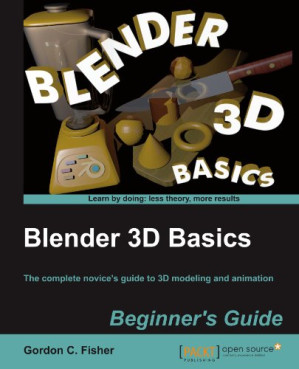
Blender 3D Basics: The complete novice's guide to 3D modeling and animation: Beginner's Guide 🔍
Gordon C. Fisher
Packt Publishing, Limited, Packt Publishing, Birmingham, 2012
英语 [en] · PDF · 13.5MB · 2012 · 📘 非小说类图书 · 🚀/lgli/lgrs/nexusstc/upload/zlib · Save
描述
The complete novice's guide to 3D modeling and animation
* The best starter guide for complete newcomers to 3D modeling and animation
* Easier learning curve than any other book on Blender
* You will learn all the important foundation skills ready to apply to any 3D software
**In Detail**
Blender is by far the most popular open source graphics program available. It is a full featured 3D modeling, animation and games development tool used by millions all over the world – and it's free! This book is for those looking for an entry into the world of 3D modeling and animation regardless of prior experience.
Blender 3D Basics is the entry level book for those without prior experience using 3D tools. It caters for those who may have downloaded Blender in the past but were frustrated by its lack of intuitiveness. Using simple steps it builds, chapter by chapter, into a full foundation in 3D modeling and animation.
Using Blender 3D Basics the reader will model a maritime scene complete with boats and water, then add materials, lighting and animation. The book demystifies the Blender interface and explains what each tool does so that you will be left with a thorough understanding of 3D.
**What you will learn from this book**
* How to create 3D objects in blender
* How to compose a scene ready for animation
* Loading, saving, importing and exporting various file formats
* Create a full animation using key-frames on a timeline
* Adding simple materials and lighting your scene
* Rendering and compositing the final animation sequence
* Add stereoscopic 3D effects
**Approach**
Written in a step by step tutorial style, learning comes as a result of creating the fully animated scene and the explanations that follow each stage.
**Who this book is written for**
Blender 3D Basics is great for anyone who is new to Blender or new to 3D.
* The best starter guide for complete newcomers to 3D modeling and animation
* Easier learning curve than any other book on Blender
* You will learn all the important foundation skills ready to apply to any 3D software
**In Detail**
Blender is by far the most popular open source graphics program available. It is a full featured 3D modeling, animation and games development tool used by millions all over the world – and it's free! This book is for those looking for an entry into the world of 3D modeling and animation regardless of prior experience.
Blender 3D Basics is the entry level book for those without prior experience using 3D tools. It caters for those who may have downloaded Blender in the past but were frustrated by its lack of intuitiveness. Using simple steps it builds, chapter by chapter, into a full foundation in 3D modeling and animation.
Using Blender 3D Basics the reader will model a maritime scene complete with boats and water, then add materials, lighting and animation. The book demystifies the Blender interface and explains what each tool does so that you will be left with a thorough understanding of 3D.
**What you will learn from this book**
* How to create 3D objects in blender
* How to compose a scene ready for animation
* Loading, saving, importing and exporting various file formats
* Create a full animation using key-frames on a timeline
* Adding simple materials and lighting your scene
* Rendering and compositing the final animation sequence
* Add stereoscopic 3D effects
**Approach**
Written in a step by step tutorial style, learning comes as a result of creating the fully animated scene and the explanations that follow each stage.
**Who this book is written for**
Blender 3D Basics is great for anyone who is new to Blender or new to 3D.
备用文件名
upload/misc_2025_10/IXKXcI5mZnjhFnLAUPaa/E-Books/computer/gamedevelopment/9781849516907_blender_3d_basics_98ab.pdf
备用文件名
nexusstc/Blender 3D Basics/0ded0cf9fdf8344e8bc0ad206df3e9fb.pdf
备用文件名
lgli/Packtpub.Blender.3D.Basics.Jun.2012.pdf
备用文件名
lgrsnf/Packtpub.Blender.3D.Basics.Jun.2012.pdf
备用文件名
zlib/Computers/Computer Graphics & Design/Gordon C. Fisher/Blender 3D Basics: The complete novice's guide to 3D modeling and animation: Beginner's Guide_1304503.pdf
备选标题
Blender 3D basics : beginner's guide : the complete novice's guide to 3D modeling and animation
备选标题
Safari books online
备选作者
Gordon Fisher; Ton Roosendaal
备选作者
Adobe InDesign CS4 (6.0.4)
备选作者
Fisher Gordon
备用版本
New Edition, Birmingham, United Kingdom, 2012
备用版本
United Kingdom and Ireland, United Kingdom
备用版本
New edition, Birmingham, June 2012
备用版本
Birmingham, England, 2012
元数据中的注释
0
元数据中的注释
lg862376
元数据中的注释
producers:
Adobe PDF Library 9.0
Adobe PDF Library 9.0
元数据中的注释
{"isbns":["1849516901","9781849516907"],"last_page":468,"publisher":"Packt Publishing"}
元数据中的注释
Trade Packt Publishing, Limited
元数据中的注释
MiU
备用描述
Cover
1
Copyright 3
Credits 4
About the Author 5
About the Reviewers 6
www.PacktPub.com 8
Table of Contents 10
Preface 20
Chapter 1: Introducing Blender and Animation 26
Welcome to the world of Blender 3D 27
Discovering Blender and animation 28
Learning Blender will literally change how you think 29
Installing Blender 29
Using Blender 31
Time for action – rendering your first scene in Blender 31
Time for action – closing Blender 34
Top 10 reasons to enjoy using Blender 3D 34
Learning from your animation heros 35
Going back to the year 1922 on an animation field trip 35
Time for action – searching on Felix Turns the Tide + 1922 36
Moving ahead a few years in time, to 1928 37
Time for action – searching on Plane Crazy +1928 38
Arriving in 1938, the animation industry is at a peak 39
Time for action – searching on Goonland + 1938 39
Starting to use computers for animation in the 1960s 40
Beginnings of 3D animation in 1963 41
Time for action – searching on Ivan Sutherland + Sketchpad 42
Going to the late 1970s, a few companies are doing 3D animation 43
Time for action – searching on Triple I demo 43
Time for action – watching Information International, Inc. (Triple I) 1982 demo reel 44
Introducing Pixar – 1984, and everything comes together 44
Time for action – searching for the video of The Adventures of André and Wally B 45
Back to the present time 46
Animation principles 46
Using 3D skills, what can you do with them? 47
Making 2D animation 48
TV and video 48
Films and pre-visualization 48
Stereoscopic 3D 48
Web animation 48
Games 48
Flight and driving simulators 49
Digital signage 49
Displaying scientific data 49
Legal evidence display 49
Architectural walkthroughs 49
Virtual reality 49
Virtual sets 49
Interactive instruction 50
Showing what can't otherwise be seen 50
Creating a portfolio to get a job 50
Product development and visualization 50
Summary 50
Chapter 2: Getting Comfortable using the 3D View 52
Exploring the Blender 3D interface 52
Setting up Blender the way you want it 53
Using the three basic Blender controllers 54
Using the numeric keypad with Blender 54
Emulating the three-button mouse and Numpad 55
Understanding how to use Blender Windows 55
Time for action – playing with the Blender windows 55
Time for action – resizing windows 57
Time for action – flipping the window header 58
Time for action – maximizing and tiling the window 58
Time for action – splitting Blender windows 59
Time for action – joining Blender windows 60
Exploring the 3D View window, the heart of Blender 63
Time for action – discovering your tools 63
Looking at the 3D View window, what do you see? 64
Making pictures with computers 66
Making colors with a computer 67
Making millions of colors with just red, green, and blue 67
Measuring things in 3D 68
Navigating in the 3D View 70
Time for action – rotating the scene in 3D View 70
Time for action – zooming the scene in 3D View 71
Time for action – panning the scene in 3D View 71
Using the Numpad to change the angle in the 3D View 72
Time for action – seeing the top view, front view, and right side view 72
Time for action – seeing the bottom view, rear view, and left side view 73
Time for action – seeing what the camera sees 73
Time for action – verifying the Camera View 74
Time for action – rotating the view with the Numpad 75
Time for action – rotating the view in another direction with the Numpad 75
Time for action – zooming with the Numpad 76
Time for action – making the camera see what you do 76
Understanding Perspective and Orthographic views 78
Time for action – toggling between Perspective and Orthographic views 78
Displaying the Quad View and Full Screen 79
Time for action – toggling the Quad view 79
Navigating in the 3D View 79
Summary 81
Chapter 3: Controlling the Lamp, the Camera, and Animating Objects 82
Understanding lamps 83
Time for action – moving the lamp 83
Time for action – moving the lamp close to the cube 84
Time for action – moving the lamp far away 85
Time for action – seeing how the lighting looks without rendering 87
Adding color to the lamp using the Properties window 88
Time for action – adding color to the lamp 89
Using multiple lamps for better lighting 90
Time for action – adding a second lamp 91
Light color mixing 92
Saving your work 94
Time for action – saving a file 95
Always have a backup file 96
Controlling the camera 96
Time for action – using the global axis and local axis 97
Time for action – moving an object in one plane in global mode 97
Time for action – moving an object in one plane in the
local mode 98
Seeing through the lens 98
Time for action – setting up Blender so you can see what the camera sees 99
Using the camera as a canvas 100
Understanding the rules of composition 100
Employing Blender's camera composition guides to make your work
look better 102
Understanding the fundamental camera moves 103
Rotating and scaling the camera and other objects 104
Making an animation 104
Time for action – loading a file 105
Time for action – making a simple animation with keyframes 106
Getting a video player so you can play your animation 108
Time for action – downloading the Blender video player 108
Time for action – installing a video player for Blender 109
Rendering your animation 110
Time for action – rendering the animation 110
Controlling motion in the Graph Editor 111
Time for action – exploring the Graph Editor 111
Introducing the F-Curve 112
Modifying motion with the Bézier curve controls 113
Time for action – working with a Bézier curve 114
Time for action – adding squash and stretch to the animation 115
Doing more with the Bézier curve handles 116
Time for action – refining the use of the Bézier curve handles 117
Selecting which channel to work on 118
Time for action – adding keyframes in the Graph Editor 118
Time for action – controlling the F-Curves with the Channel Selection Panel 120
Time for action – controlling channel display with the header 121
Copying, pasting, and deleting keyframes 121
Time for action – copying and pasting keyframes 121
Keyframes for properties 122
Time for action – keyframes for lights 122
Summary 126
Chapter 4: Modeling with Vertices, Edges, and Faces 128
Using Object Mode and Edit Mode 128
Time for action – going into Edit Mode 129
Investigating vertices, edges, and faces 130
Time for action – choosing the best display mode 131
Time for action – working with vertices, edges, or faces 131
Selecting multiple vertices, edges, and faces 133
Time for action – pressing A to select all 133
Time for action – pressing B for border selection 133
Time for action – pressing C for circle selection 134
Time for action – pressing Ctrl+LMB for lasso selection 135
Creating Blender's basic objects 136
Time for action – making a basic object 136
Understanding what lies behind vertices, edges,
and faces 138
Building vertices, edges, and faces from scratch 139
Time for action – making faces out of vertices and edges 139
Time for action – making a face from an edge 141
Summary 143
Chapter 5: Building a Simple Boat 144
Turning a cube into a boat with box modeling 145
Using extrusion, the most powerful tool in box modeling 145
Time for action – extruding to make the inside of the hull 145
Using normals in 3D modeling 147
Time for action – displaying normals 148
Planning what you are going to make 149
Choosing which units to model in 149
Time for action – making reference objects 150
Sizing the boat to the reference blocks 151
Time for action – making the boat the proper length 151
Time for action – making the boat the proper width and height 152
Time for action – adding curves to the boat's lines by subdividing 155
Using clean building methods 159
Time for action – adding a seat to the boat 160
Time for action – making the other seat 162
Making modeling easier with Blender's layers function 164
Time for action – introducing layers 164
Time for action – using layers for controlling rendering 165
Coloring the boat to add realism 166
Time for action – coloring the hull and the gunwale 166
Time for action – adding a texture to the seats 170
Time for action – naming objects and joining them 173
Using Basic Lighting 174
Summary 174
Chapter 6: Making and Moving the Oars 176
Modeling an oar 177
Getting scale from an image 177
Making a cylinder into an oar 177
Time for action – making the shaft of the oar 178
Time for action – making the grip and guard 179
Time for action – making the base of the blade of the oar 182
Time for action – making the blade 183
Controlling how smooth the surface is 188
Time for action – controlling flat and smooth surfaces 188
Making the oarlock 190
Time for action – making the oarlock 190
Assembling the boat, oars, and oarlocks 193
Time for action – loading all of the models together 194
Animating the boat 198
Time for action – timing a stroke 198
Parenting and kinematics 200
Time for action – animating the oarlock and oar 201
Animation cycles 203
Time for action – copying keyframes to make a rowing cycle 203
Moving the boat 205
Time for action – moving the boat in sync with the oars 205
Tracking the boat with the camera 208
Time for action – tracking the boat 208
Making Stereoscopic 3D Animation 209
Summary 209
Chapter 7: Planning your Work, Working your Plan 210
Using templates for modeling 211
Time for action – adding a template 213
Time for action – scaling and aligning the template 214
Time for action – building the mast 217
Modeling with Bezier Curves 219
Making an object with a single Bezier Curve 219
Time for action – making the rudder with a Bezier Curve 219
Using multiple Bezier Curves to make an object 223
Time for action – making the path and the cross-section for the tiller 223
Keeping everything organized 226
Making an index of your files 227
Saving your Blender files 228
Planning your animation 228
Discovering the story you want to tell with your animation 228
Bringing your story to life with storyboards 230
Making a storyboard 230
Using animatics to plan the timing of your animation 233
Using charts and guides to help you plan your animation 234
Staying in TV limits with Safe Title-Action zones and Lower Thirds 234
Time for action – adding a Safe Title/Safe Action guide to Blender 235
Transitioning from Standard Definition TV to High Definition TV 236
Laying out your motion with Timing 237
Planning what work must be done to make an animation 238
Guiding animation production with an audio track 239
Time for action – adding an audio track to Blender 239
Summary 243
Chapter 8: Making the Sloop 244
Modeling with Subdivision Surfaces 244
Time for action – making a simple Subdivision Surface 245
Using Edge Tools to make modeling easier 246
Time for action – turning a Reference Block into a sloop 247
Time for action – making selection easy with edge loops and edge rings 249
Time for action – creating the shape of the sloop from the top 250
Time for action – giving the hull a hull shape 252
Time for action – flattening the transom 256
Time for action – making the bow sharper 257
Time for action – finishing the hull 258
Getting the most for your rendering time with Levels of Detail 259
Time for action – making the boat simpler 259
Modeling the hull as a mesh 262
Time for action – converting the surface to a mesh 262
Time for action – making the cockpit 263
Time for action – making the cabin 266
Using Boolean modifiers to cut holes in objects 271
Time for action – detailing the cabin using the Boolean modifier 271
Time for action – applying the Boolean modifier 273
Adding materials and textures to the sloop 274
Time for action – coloring and texturing the sloop hull 275
Time for action – using the same materials for two objects 280
Making the ship’s wheel with the Spin tool and DupliVerts 282
Time for action – using the Spin tool to make the rim of the ship’s wheel 282
Time for action – making the hub 284
Time for action – making the circle 284
Time for action – making the spoke 285
Time for action – assembling the ship’s wheel 288
Summary 290
Chapter 9: Finishing your Sloop 292
Making sure you have the files you'll need in this chapter 292
Finishing the sloop 293
Time for action – setting up the boom and gaff so they swing 293
Time for action – adding the rudder, tiller, and keel 297
Time for action – adding the ship's wheel 300
Time for action – adding the boat name 302
Time for action – using a NURBS surface to make the mainsail 304
Detailing the sloop, adding a door and portals 308
Time for action – adding a line to control the mainsail 308
Time for action – adding the portals 310
Summary 316
Chapter 10: Modeling Organic Forms, Sea, and Terrain 318
Getting ready to make the island 319
Creating the ocean 319
Time for action – making a surface for the water 319
Making an island 322
Using the ANT Landscape add-on 322
Time for action – using ANT Landscape to make the island 323
Detailing the island 326
Time for action – understanding the proportional editing control 327
Time for action – using proportional editing to create the port 329
Time for action – building the breakwater 332
Time for action – adding contours to the back side of the island 334
Painting the island 335
Time for action – painting the island 335
Making the island ready for habitation 341
Building the pier with just four objects 341
Time for action – creating the pier frame rails with Bezier Curves 341
Time for action – adding planks to the pier with DupliFrames 344
Time for action – using arrays to create the pilings for the pier 346
Appending the boathouse 348
Time for action – appending the boathouse and building pilings for it 348
Building modular houses 351
Creating trees with the Sapling add-on 353
Time for action – adding trees to the landscape 354
Making rocks 358
Assembling your world 358
Time for action – using groups to organize your scene 360
Summary 362
Chapter 11: Improving your Lighting and Camera Work 364
Getting ready to do lighting and camera work 364
Using lighting 365
Lighting with three lights 366
Time for action – introducing the three point lighting system 366
Time for action – lighting with only the key light 367
Time for action – lighting with only the fill light 368
Time for action – lighting with only the back light 369
Time for action – using color to separate what you see 370
Time for action – using cookies 372
Time for action – preparing to adjust falloff 374
Time for action – adjusting the falloff 376
Time for action – using the Custom Curve to tailor light 378
Using the camera to best effect 382
Changing the field of view 382
Time for action – zooming the camera versus dollying
the camera 383
Using perspective 386
Using depth of field 387
Time for action – creating depth of field 388
Getting variety in your camera work 392
Comparing long and medium shots 393
Using close-up and two shots 393
Applying the rule of 180 394
Using motion blur 394
Planning your animation and making sure it comes
out right 397
Storyboarding your ideas 397
Laying out your animation 398
Proofing your work 399
Doing a preview 399
Using hardware rendering to see the motion 399
Inspecting details by rendering only part of the frame 400
Glimpsing what the animation will look like with the quick render 400
Time for action – reducing render times 400
Making corrections 402
Time for action – using the Dope Sheet 403
Summary 406
Chapter 12: Rendering and Compositing 408
Preparing for Chapter 12 408
Editing with the Video Sequence Editor 409
Time for action – dissolving with the Video Sequence Editor 409
Time for action – editing individual video strips 414
Time for action – using K and Shift+K to make your trims 416
Making stereographic 3D with the Node Editor 419
Time for action – creating the red image for the left eye 420
Time for action – making the right-eye view 423
Rendering your animations 427
Making your computer ready to render 428
Making rendering more beautiful 428
Using Anti-Aliasing for more beautiful renderings 428
Time for action – displaying aliasing 428
Getting realism with subsurface scattering 429
Putting a sparkle on your animations with ray tracing 429
Time for action – seeing ray tracing 430
Choosing the proper number of tiles 431
Using alpha channels 432
Time for action – exploring the alpha channel 432
Time for action – using transparency in the Video Sequence Editor 433
Choosing the dimensions for your animation 435
Time for action – selecting render presets 435
Time for action – seeing what fields look like 437
Choosing what gets rendered 439
Selecting the best file format 441
Rendering with the Cycles renderer 441
Time for action – simulating the glow of a kiln 442
Summary 447
Pop Quiz Answers 448
Chapter 2, Getting Comfortable using the 3D View 448
Chapter 3, Controlling the Lamp, the Camera, and
Animating Objects 449
Chapter 4, Modeling with Vertices, Edges, and Faces 449
Chapter 5, Building and Lighting a Simple Boat 449
Chapter 6, Making and Moving the Oars 449
Chapter 7, Planning your Work, Working your Plan 450
Chapter 8, Making the Sloop 450
Chapter 10, Modeling Organic Forms, Sea, and Terrain 451
Chapter 11, Improving your Lighting and Camera Work 451
Chapter 12, Rendering and Compositing 451
Index 452
Copyright 3
Credits 4
About the Author 5
About the Reviewers 6
www.PacktPub.com 8
Table of Contents 10
Preface 20
Chapter 1: Introducing Blender and Animation 26
Welcome to the world of Blender 3D 27
Discovering Blender and animation 28
Learning Blender will literally change how you think 29
Installing Blender 29
Using Blender 31
Time for action – rendering your first scene in Blender 31
Time for action – closing Blender 34
Top 10 reasons to enjoy using Blender 3D 34
Learning from your animation heros 35
Going back to the year 1922 on an animation field trip 35
Time for action – searching on Felix Turns the Tide + 1922 36
Moving ahead a few years in time, to 1928 37
Time for action – searching on Plane Crazy +1928 38
Arriving in 1938, the animation industry is at a peak 39
Time for action – searching on Goonland + 1938 39
Starting to use computers for animation in the 1960s 40
Beginnings of 3D animation in 1963 41
Time for action – searching on Ivan Sutherland + Sketchpad 42
Going to the late 1970s, a few companies are doing 3D animation 43
Time for action – searching on Triple I demo 43
Time for action – watching Information International, Inc. (Triple I) 1982 demo reel 44
Introducing Pixar – 1984, and everything comes together 44
Time for action – searching for the video of The Adventures of André and Wally B 45
Back to the present time 46
Animation principles 46
Using 3D skills, what can you do with them? 47
Making 2D animation 48
TV and video 48
Films and pre-visualization 48
Stereoscopic 3D 48
Web animation 48
Games 48
Flight and driving simulators 49
Digital signage 49
Displaying scientific data 49
Legal evidence display 49
Architectural walkthroughs 49
Virtual reality 49
Virtual sets 49
Interactive instruction 50
Showing what can't otherwise be seen 50
Creating a portfolio to get a job 50
Product development and visualization 50
Summary 50
Chapter 2: Getting Comfortable using the 3D View 52
Exploring the Blender 3D interface 52
Setting up Blender the way you want it 53
Using the three basic Blender controllers 54
Using the numeric keypad with Blender 54
Emulating the three-button mouse and Numpad 55
Understanding how to use Blender Windows 55
Time for action – playing with the Blender windows 55
Time for action – resizing windows 57
Time for action – flipping the window header 58
Time for action – maximizing and tiling the window 58
Time for action – splitting Blender windows 59
Time for action – joining Blender windows 60
Exploring the 3D View window, the heart of Blender 63
Time for action – discovering your tools 63
Looking at the 3D View window, what do you see? 64
Making pictures with computers 66
Making colors with a computer 67
Making millions of colors with just red, green, and blue 67
Measuring things in 3D 68
Navigating in the 3D View 70
Time for action – rotating the scene in 3D View 70
Time for action – zooming the scene in 3D View 71
Time for action – panning the scene in 3D View 71
Using the Numpad to change the angle in the 3D View 72
Time for action – seeing the top view, front view, and right side view 72
Time for action – seeing the bottom view, rear view, and left side view 73
Time for action – seeing what the camera sees 73
Time for action – verifying the Camera View 74
Time for action – rotating the view with the Numpad 75
Time for action – rotating the view in another direction with the Numpad 75
Time for action – zooming with the Numpad 76
Time for action – making the camera see what you do 76
Understanding Perspective and Orthographic views 78
Time for action – toggling between Perspective and Orthographic views 78
Displaying the Quad View and Full Screen 79
Time for action – toggling the Quad view 79
Navigating in the 3D View 79
Summary 81
Chapter 3: Controlling the Lamp, the Camera, and Animating Objects 82
Understanding lamps 83
Time for action – moving the lamp 83
Time for action – moving the lamp close to the cube 84
Time for action – moving the lamp far away 85
Time for action – seeing how the lighting looks without rendering 87
Adding color to the lamp using the Properties window 88
Time for action – adding color to the lamp 89
Using multiple lamps for better lighting 90
Time for action – adding a second lamp 91
Light color mixing 92
Saving your work 94
Time for action – saving a file 95
Always have a backup file 96
Controlling the camera 96
Time for action – using the global axis and local axis 97
Time for action – moving an object in one plane in global mode 97
Time for action – moving an object in one plane in the
local mode 98
Seeing through the lens 98
Time for action – setting up Blender so you can see what the camera sees 99
Using the camera as a canvas 100
Understanding the rules of composition 100
Employing Blender's camera composition guides to make your work
look better 102
Understanding the fundamental camera moves 103
Rotating and scaling the camera and other objects 104
Making an animation 104
Time for action – loading a file 105
Time for action – making a simple animation with keyframes 106
Getting a video player so you can play your animation 108
Time for action – downloading the Blender video player 108
Time for action – installing a video player for Blender 109
Rendering your animation 110
Time for action – rendering the animation 110
Controlling motion in the Graph Editor 111
Time for action – exploring the Graph Editor 111
Introducing the F-Curve 112
Modifying motion with the Bézier curve controls 113
Time for action – working with a Bézier curve 114
Time for action – adding squash and stretch to the animation 115
Doing more with the Bézier curve handles 116
Time for action – refining the use of the Bézier curve handles 117
Selecting which channel to work on 118
Time for action – adding keyframes in the Graph Editor 118
Time for action – controlling the F-Curves with the Channel Selection Panel 120
Time for action – controlling channel display with the header 121
Copying, pasting, and deleting keyframes 121
Time for action – copying and pasting keyframes 121
Keyframes for properties 122
Time for action – keyframes for lights 122
Summary 126
Chapter 4: Modeling with Vertices, Edges, and Faces 128
Using Object Mode and Edit Mode 128
Time for action – going into Edit Mode 129
Investigating vertices, edges, and faces 130
Time for action – choosing the best display mode 131
Time for action – working with vertices, edges, or faces 131
Selecting multiple vertices, edges, and faces 133
Time for action – pressing A to select all 133
Time for action – pressing B for border selection 133
Time for action – pressing C for circle selection 134
Time for action – pressing Ctrl+LMB for lasso selection 135
Creating Blender's basic objects 136
Time for action – making a basic object 136
Understanding what lies behind vertices, edges,
and faces 138
Building vertices, edges, and faces from scratch 139
Time for action – making faces out of vertices and edges 139
Time for action – making a face from an edge 141
Summary 143
Chapter 5: Building a Simple Boat 144
Turning a cube into a boat with box modeling 145
Using extrusion, the most powerful tool in box modeling 145
Time for action – extruding to make the inside of the hull 145
Using normals in 3D modeling 147
Time for action – displaying normals 148
Planning what you are going to make 149
Choosing which units to model in 149
Time for action – making reference objects 150
Sizing the boat to the reference blocks 151
Time for action – making the boat the proper length 151
Time for action – making the boat the proper width and height 152
Time for action – adding curves to the boat's lines by subdividing 155
Using clean building methods 159
Time for action – adding a seat to the boat 160
Time for action – making the other seat 162
Making modeling easier with Blender's layers function 164
Time for action – introducing layers 164
Time for action – using layers for controlling rendering 165
Coloring the boat to add realism 166
Time for action – coloring the hull and the gunwale 166
Time for action – adding a texture to the seats 170
Time for action – naming objects and joining them 173
Using Basic Lighting 174
Summary 174
Chapter 6: Making and Moving the Oars 176
Modeling an oar 177
Getting scale from an image 177
Making a cylinder into an oar 177
Time for action – making the shaft of the oar 178
Time for action – making the grip and guard 179
Time for action – making the base of the blade of the oar 182
Time for action – making the blade 183
Controlling how smooth the surface is 188
Time for action – controlling flat and smooth surfaces 188
Making the oarlock 190
Time for action – making the oarlock 190
Assembling the boat, oars, and oarlocks 193
Time for action – loading all of the models together 194
Animating the boat 198
Time for action – timing a stroke 198
Parenting and kinematics 200
Time for action – animating the oarlock and oar 201
Animation cycles 203
Time for action – copying keyframes to make a rowing cycle 203
Moving the boat 205
Time for action – moving the boat in sync with the oars 205
Tracking the boat with the camera 208
Time for action – tracking the boat 208
Making Stereoscopic 3D Animation 209
Summary 209
Chapter 7: Planning your Work, Working your Plan 210
Using templates for modeling 211
Time for action – adding a template 213
Time for action – scaling and aligning the template 214
Time for action – building the mast 217
Modeling with Bezier Curves 219
Making an object with a single Bezier Curve 219
Time for action – making the rudder with a Bezier Curve 219
Using multiple Bezier Curves to make an object 223
Time for action – making the path and the cross-section for the tiller 223
Keeping everything organized 226
Making an index of your files 227
Saving your Blender files 228
Planning your animation 228
Discovering the story you want to tell with your animation 228
Bringing your story to life with storyboards 230
Making a storyboard 230
Using animatics to plan the timing of your animation 233
Using charts and guides to help you plan your animation 234
Staying in TV limits with Safe Title-Action zones and Lower Thirds 234
Time for action – adding a Safe Title/Safe Action guide to Blender 235
Transitioning from Standard Definition TV to High Definition TV 236
Laying out your motion with Timing 237
Planning what work must be done to make an animation 238
Guiding animation production with an audio track 239
Time for action – adding an audio track to Blender 239
Summary 243
Chapter 8: Making the Sloop 244
Modeling with Subdivision Surfaces 244
Time for action – making a simple Subdivision Surface 245
Using Edge Tools to make modeling easier 246
Time for action – turning a Reference Block into a sloop 247
Time for action – making selection easy with edge loops and edge rings 249
Time for action – creating the shape of the sloop from the top 250
Time for action – giving the hull a hull shape 252
Time for action – flattening the transom 256
Time for action – making the bow sharper 257
Time for action – finishing the hull 258
Getting the most for your rendering time with Levels of Detail 259
Time for action – making the boat simpler 259
Modeling the hull as a mesh 262
Time for action – converting the surface to a mesh 262
Time for action – making the cockpit 263
Time for action – making the cabin 266
Using Boolean modifiers to cut holes in objects 271
Time for action – detailing the cabin using the Boolean modifier 271
Time for action – applying the Boolean modifier 273
Adding materials and textures to the sloop 274
Time for action – coloring and texturing the sloop hull 275
Time for action – using the same materials for two objects 280
Making the ship’s wheel with the Spin tool and DupliVerts 282
Time for action – using the Spin tool to make the rim of the ship’s wheel 282
Time for action – making the hub 284
Time for action – making the circle 284
Time for action – making the spoke 285
Time for action – assembling the ship’s wheel 288
Summary 290
Chapter 9: Finishing your Sloop 292
Making sure you have the files you'll need in this chapter 292
Finishing the sloop 293
Time for action – setting up the boom and gaff so they swing 293
Time for action – adding the rudder, tiller, and keel 297
Time for action – adding the ship's wheel 300
Time for action – adding the boat name 302
Time for action – using a NURBS surface to make the mainsail 304
Detailing the sloop, adding a door and portals 308
Time for action – adding a line to control the mainsail 308
Time for action – adding the portals 310
Summary 316
Chapter 10: Modeling Organic Forms, Sea, and Terrain 318
Getting ready to make the island 319
Creating the ocean 319
Time for action – making a surface for the water 319
Making an island 322
Using the ANT Landscape add-on 322
Time for action – using ANT Landscape to make the island 323
Detailing the island 326
Time for action – understanding the proportional editing control 327
Time for action – using proportional editing to create the port 329
Time for action – building the breakwater 332
Time for action – adding contours to the back side of the island 334
Painting the island 335
Time for action – painting the island 335
Making the island ready for habitation 341
Building the pier with just four objects 341
Time for action – creating the pier frame rails with Bezier Curves 341
Time for action – adding planks to the pier with DupliFrames 344
Time for action – using arrays to create the pilings for the pier 346
Appending the boathouse 348
Time for action – appending the boathouse and building pilings for it 348
Building modular houses 351
Creating trees with the Sapling add-on 353
Time for action – adding trees to the landscape 354
Making rocks 358
Assembling your world 358
Time for action – using groups to organize your scene 360
Summary 362
Chapter 11: Improving your Lighting and Camera Work 364
Getting ready to do lighting and camera work 364
Using lighting 365
Lighting with three lights 366
Time for action – introducing the three point lighting system 366
Time for action – lighting with only the key light 367
Time for action – lighting with only the fill light 368
Time for action – lighting with only the back light 369
Time for action – using color to separate what you see 370
Time for action – using cookies 372
Time for action – preparing to adjust falloff 374
Time for action – adjusting the falloff 376
Time for action – using the Custom Curve to tailor light 378
Using the camera to best effect 382
Changing the field of view 382
Time for action – zooming the camera versus dollying
the camera 383
Using perspective 386
Using depth of field 387
Time for action – creating depth of field 388
Getting variety in your camera work 392
Comparing long and medium shots 393
Using close-up and two shots 393
Applying the rule of 180 394
Using motion blur 394
Planning your animation and making sure it comes
out right 397
Storyboarding your ideas 397
Laying out your animation 398
Proofing your work 399
Doing a preview 399
Using hardware rendering to see the motion 399
Inspecting details by rendering only part of the frame 400
Glimpsing what the animation will look like with the quick render 400
Time for action – reducing render times 400
Making corrections 402
Time for action – using the Dope Sheet 403
Summary 406
Chapter 12: Rendering and Compositing 408
Preparing for Chapter 12 408
Editing with the Video Sequence Editor 409
Time for action – dissolving with the Video Sequence Editor 409
Time for action – editing individual video strips 414
Time for action – using K and Shift+K to make your trims 416
Making stereographic 3D with the Node Editor 419
Time for action – creating the red image for the left eye 420
Time for action – making the right-eye view 423
Rendering your animations 427
Making your computer ready to render 428
Making rendering more beautiful 428
Using Anti-Aliasing for more beautiful renderings 428
Time for action – displaying aliasing 428
Getting realism with subsurface scattering 429
Putting a sparkle on your animations with ray tracing 429
Time for action – seeing ray tracing 430
Choosing the proper number of tiles 431
Using alpha channels 432
Time for action – exploring the alpha channel 432
Time for action – using transparency in the Video Sequence Editor 433
Choosing the dimensions for your animation 435
Time for action – selecting render presets 435
Time for action – seeing what fields look like 437
Choosing what gets rendered 439
Selecting the best file format 441
Rendering with the Cycles renderer 441
Time for action – simulating the glow of a kiln 442
Summary 447
Pop Quiz Answers 448
Chapter 2, Getting Comfortable using the 3D View 448
Chapter 3, Controlling the Lamp, the Camera, and
Animating Objects 449
Chapter 4, Modeling with Vertices, Edges, and Faces 449
Chapter 5, Building and Lighting a Simple Boat 449
Chapter 6, Making and Moving the Oars 449
Chapter 7, Planning your Work, Working your Plan 450
Chapter 8, Making the Sloop 450
Chapter 10, Modeling Organic Forms, Sea, and Terrain 451
Chapter 11, Improving your Lighting and Camera Work 451
Chapter 12, Rendering and Compositing 451
Index 452
备用描述
Key FeaturesThe best starter guide for complete newcomers to 3D modeling and animationEasier learning curve than any other book on BlenderYou will learn all the important foundation skills ready to apply to any 3D softwareBook DescriptionBlender is by far the most popular open source graphics program available. It is a full featured 3D modeling, animation and games development tool used by millions all over the world ñ and it's free! This book is for those looking for an entry into the world of 3D modeling and animation regardless of prior experience. Blender 3D Basics is the entry level book for those without prior experience using 3D tools. It caters for those who may have downloaded Blender in the past but were frustrated by its lack of intuitiveness. Using simple steps it builds, chapter by chapter, into a full foundation in 3D modeling and animation. Using Blender 3D Basics the reader will model a maritime scene complete with boats and water, then add materials, lighting and animation. The book demystifies the Blender interface and explains what each tool does so that you will be left with a thorough understanding of 3D.What you will learnHow to create 3D objects in blenderHow to compose a scene ready for animationLoading, saving, importing and exporting various file formatsCreate a full animation using key-frames on a timelineAdding simple materials and lighting your sceneRendering and compositing the final animation sequenceAdd stereoscopic 3D effectsWho this book is forBlender 3D Basics is great for anyone who is new to Blender or new to 3D.
备用描述
What you will learn from this book? How to create 3D objects in blender How to compose a scene ready for animation Loading, saving, importing and exporting various file formats Create a full animation using key-frames on a timeline Adding simple materials and lighting your scene Rendering and compositing the final animation sequence Add stereoscopic 3D effects. Blender is by far the most popular open source graphics program available. It is a full featured 3D modeling, animation and games development tool used by millions all over the world and it's free! This book is for those looking for an entry into the world of 3D modeling and animation regardless of prior experience. Blender 3D Basics is the entry level book for those without prior experience using 3D tools. It caters for those who may have downloaded Blender in the past but were frustrated by its lack of intuitiveness. Using simple steps it builds, chapter by chapter, into a full foundation in 3D modeling and animation. Using Blender 3D Basics the reader will model a maritime scene complete with boats and water, then add materials, lighting and animation. The book demystifies the Blender interface and explains what each tool does so that you will be left with a thorough understanding of 3D
开源日期
2012-09-16
🚀 快速下载
成为会员以支持书籍、论文等的长期保存。为了感谢您对我们的支持,您将获得高速下载权益。❤️
🐢 低速下载
由可信的合作方提供。 更多信息请参见常见问题解答。 (可能需要验证浏览器——无限次下载!)
- 低速服务器(合作方提供) #1 (稍快但需要排队)
- 低速服务器(合作方提供) #2 (稍快但需要排队)
- 低速服务器(合作方提供) #3 (稍快但需要排队)
- 低速服务器(合作方提供) #4 (稍快但需要排队)
- 低速服务器(合作方提供) #5 (无需排队,但可能非常慢)
- 低速服务器(合作方提供) #6 (无需排队,但可能非常慢)
- 低速服务器(合作方提供) #7 (无需排队,但可能非常慢)
- 低速服务器(合作方提供) #8 (无需排队,但可能非常慢)
- 低速服务器(合作方提供) #9 (无需排队,但可能非常慢)
- 下载后: 在我们的查看器中打开
所有选项下载的文件都相同,应该可以安全使用。即使这样,从互联网下载文件时始终要小心。例如,确保您的设备更新及时。
外部下载
-
对于大文件,我们建议使用下载管理器以防止中断。
推荐的下载管理器:JDownloader -
您将需要一个电子书或 PDF 阅读器来打开文件,具体取决于文件格式。
推荐的电子书阅读器:Anna的档案在线查看器、ReadEra和Calibre -
使用在线工具进行格式转换。
推荐的转换工具:CloudConvert和PrintFriendly -
您可以将 PDF 和 EPUB 文件发送到您的 Kindle 或 Kobo 电子阅读器。
推荐的工具:亚马逊的“发送到 Kindle”和djazz 的“发送到 Kobo/Kindle” -
支持作者和图书馆
✍️ 如果您喜欢这个并且能够负担得起,请考虑购买原版,或直接支持作者。
📚 如果您当地的图书馆有这本书,请考虑在那里免费借阅。
下面的文字仅以英文继续。
总下载量:
“文件的MD5”是根据文件内容计算出的哈希值,并且基于该内容具有相当的唯一性。我们这里索引的所有影子图书馆都主要使用MD5来标识文件。
一个文件可能会出现在多个影子图书馆中。有关我们编译的各种数据集的信息,请参见数据集页面。
有关此文件的详细信息,请查看其JSON 文件。 Live/debug JSON version. Live/debug page.